5/13/2024

How to Set up Vediamo 5.01.01 for VXDIAG VCX SE?

 Some users follow the forum guide to set up the VXDIAG VCX SE Benz with Vediamo 5.1. Vediamo will recognize the VXDIAG but when connecting to ECU module (i.e MED40), they will get the error that the connection with the ECU cannot be established.

Set up Vediamo 5.01.01 for VXDIAG VCX SE 1

Here is the clue.

Vediamo 5.01.01 need a special fix file (slave file) to configure as J2534.


Here we share the Vediamo 5.01.01 software with a salve file for VXDIAG scanners.

vediamo 5.01.01 for vxdiag

Only this you need.
Vediamo/Cesaer/Driver – copy paste the file here and replace him
In program files (x86)Vediamo/Cesaer/Driver – copy paste the file here and replace him
And then connect the device run as administrator Vediamo
Update and select only eCom port
Again Update.

Job finish.

Set up Vediamo 5.01.01 for VXDIAG VCX SE 2

Tested VXDIAG working well with Xentry 12/2023. You can use the CBF files from Xentry with Vediamo.

Our engineer tested on Mercedes ME9.7 ECU.  Works great.

Set up Vediamo 5.01.01 for VXDIAG VCX SE 3

Set up Vediamo 5.01.01 for VXDIAG VCX SE 4

Set up Vediamo 5.01.01 for VXDIAG VCX SE 5

Set up Vediamo 5.01.01 for VXDIAG VCX SE 6

3/12/2024

Register Toyota Prius 2015 TPMS with VXDIAG Techstream

 How-to: register Toyota Prius 2015 TPMS tire pressure sensors with Techstream.


You will need a Techstream cable that has TPMS capability, for example, the vxdiag vcx nano Toyota or the genuine Mongoose Pro MFC cable.

You also need proper Techstream software. Some versions may not have a Utility option. Here use V18.00.008 with autokent keygen activation (google it).

MINI VCI or the MVCI Pro cable don’t do TPMS.


Background information:

We installed a winter set of wheels, but we don’t know the ID of the “winter” sensors. We only know the “summer” ones, and only because the summer set a year ago had to be disassembled and a winter makeshift set put on them. The burning TMPS (Tire Monitor Pressure System) icon on the instrument panel is also a little annoying.

So we need to register the TPMS sensor.


First of all, hook up the Autel TS508WF TPMS scanner.

The scanner is cool, it shows all the information at once at the end: where is which ID, pressure, temperature and battery status.

Register Toyota Prius 2015 TPMS with VXDIAG Techstream 1

Purchase 4 sets of TPMS sensors. Now the received sensors need to be registered in the car. We take the techstream cable and laptop under our arms and stomp to the parking lot. Let’s launch Techstream and get into TMPS.


1.From a bunch of modules, select the Tire Pressure Monitor we need.

Register Toyota Prius 2015 TPMS with VXDIAG Techstream 2

2. In the Trouble Codes section, as expected, we see 4 errors due to lack of communication with sensors.

Register Toyota Prius 2015 TPMS with VXDIAG Techstream 3

3. In the Data List section we see that Main Tire has (?) 4 slots and 2nd Tire also has 4 slots. The temperature is -40 in each… undetectable sensor, and the pressure everywhere is N/A kPa

Register Toyota Prius 2015 TPMS with VXDIAG Techstream 4

4. In the Utility section, run ID Registration to begin the procedure for registering sensors

Register Toyota Prius 2015 TPMS with VXDIAG Techstream 5

5. We read that the process will fail if you started it when the machine is only in the process of identifying sensors (if you just turned it on) and if you exceed 5 minutes to enter all IDs

Register Toyota Prius 2015 TPMS with VXDIAG Techstream 6

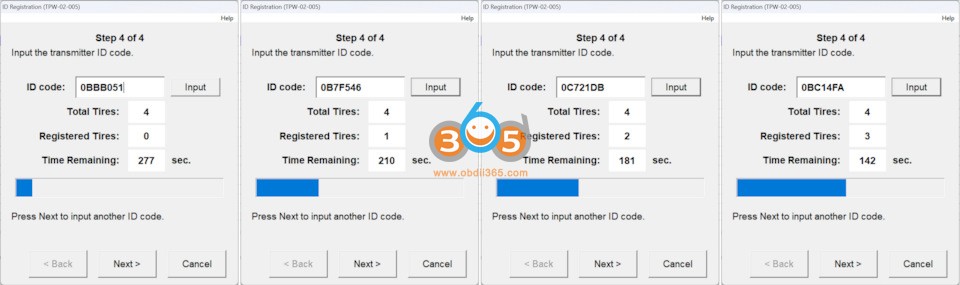
6. Consistently enter all 4 IDs known to us

Register Toyota Prius 2015 TPMS with VXDIAG Techstream 7

7. After the process is completed, within a few minutes you will be able to watch in real time how the machine polls sensors in the background and displays temperature and pressure on the monitor (in this screenshot only one sensor was picked up, and the error on the right in the Number of DTC still hangs)

Register Toyota Prius 2015 TPMS with VXDIAG Techstream 8

8. And here all the sensors have already picked up and the error on the right has disappeared. At the same moment, the TPMS icon on the dashboard should go out.

Register Toyota Prius 2015 TPMS with VXDIAG Techstream 9

Done.


http://blog.obdii365.com/2024/03/13/how-to-register-toyota-prius-tpms-with-techstream/

1/02/2024

New VXDIAG Nissan License for VCX SE VCX DoIP

 Nissan software license is ready for VXDIAG VCX SE & VCX DoIP diagnostic scanners.


License: for Nissan Infiniti GTR

Software: Nissan Consult iii plus V226

Update: by link. Firmware update online.

Multi-language

Operating system: Windows 10

VXDIAG Nissan License


How to Add Nissan License to VXDIAG VCX SE/VCX DoIP?

1. Purchase Nissan license here

https://www.obdii365.com/wholesale/vxdiag-nissan-software-license.html

2. Provide your vcx se or vcx plus device serial number to obdii365.com customer service

3. We will activate license to your device in 2-3 working days.

4. Download Nissan consult3 plus and vxdiag driver


nissan consult 3 plus v226

NOTE:

1.

Make sure your vcx se/vcx plus has the following serial numbers, otherwise may not allow you to activate license.

VCX SE V94SE****, VCX Multi V52XP****, V71XN****, V81XD****, V83XD****, V94XD*****, VCX PRO P71XP****.

2.

Nissan uses seperate license as Renault and PSA. Don’t need to install Nissan driver in vx manager.

3. If you don’t have any Vxdiag device yet, go for

VXDIAG VCX NANO for Nissan (single brand device, WiFi version only)

VXDIAG VCX SE for Nissan (with Nissan license, allow to add other car brands to the device)


VXDIAG Nissan functions:

Nissan Consult-3 Plus is the newest Nissan diagnostic tool. Nissan Consult-3 Plus diagnosis system is based on a wireless platform provides completed diagnosis and service information. It supports Nissan, Infiniti and GTR diagnostics and programming.

Nissan Consult3 Plus can support all the models of the Nissan and Infiniti from 2005 up to Now, with all Consult II & III functions.


You can also use VXDIAG VCX SE as a Passthru for Nissan

How to Configure Nissan Consult III+ with Passthru Devices?

12/18/2023

How to Install VXDIAG Ford IDS V130 & Mazda IDS V131?

 Tutorial: How to install Ford IDS V130 and Mazda IDS V131 software driver on Windows 10 operating system.


Software can be downloaded free here

Free Download Ford IDS V130 Mazda IDS V131

Compatible devices:

VXDIAG VCX NANO Ford/Mazda USB or WiFi, VCX SE or VCX Plus Ford/Mazda, VCM2 Clone, VNCI MF J2534 Ford/Mazda

Operating system: Windows 10 (free to test on Win7 and Win11)

NOTE: Don’t install both Ford IDS and Mazda IDS on the same operating system!!!


How to Install Ford IDS V130?


Open Ford IDS V130 software folder

Install IDS_130.01_full.exe setup

install vxdiag ford ids v130 1

Select setup language
Install setup until completed
Reboot

install vxdiag ford ids v130 2

install vxdiag ford ids v130 3

Install VCI_Software_1.0.0.10 driver

install vxdiag ford ids v130 4

install vxdiag ford ids v130 5

install vxdiag ford ids v130 6

Install VX Manager 1.8.9

Install Passthru J2534 and Ford/Mazda IDS driver

install vxdiag ford ids v130 7

Copy and paste IDS_Patch to desktop
Connect VXDIAG device with laptop
Run VX Manager
check device status

install vxdiag ford ids v130 8

Run Ford IDS from IDS_Patch on deaktop
Software is ready to use

install vxdiag ford ids v130 9

install vxdiag ford ids v130 10


How to Install Mazda IDS V131?


Mazda IDS installation is easier than Ford IDS. Mazda does not need to install VCI software driver.

Open the Mazda IDS V131 software folder
Install MazdaIDS-131.00.exe setup.

install vxdiag mazda ids v131 1

Install setup until completed
Reboot

install vxdiag mazda ids v131 2

install vxdiag mazda ids v131 3

Install VX Manager

Install Passthru J2534 and Ford/Mazda IDS driver

install vxdiag mazda ids v131 4

install vxdiag mazda ids v131 5

Connect VXDIAG device with laptop
Run VX Manager
check device status

install vxdiag mazda ids v131 6

Copy and paste IDS_Patch to desktop
Run Mazda IDS from IDS_Patch on deaktop
Software is ready to use

install vxdiag mazda ids v131 7

install vxdiag mazda ids v131 8

www.obdii365.com

11/14/2023

How to Use PSA Service Box with VXDIAG VCX NANO GM?

 Tutorial: How to set up PSA Service Box SPS programming for Opel/Vauxhall using J2534 passthru device.


The hardest part is creating an account.

You need to purchase the software update from Service Box, a PSA site that now deals with GM products in Europe.

*Opel Vauxhall Vehicles Not available Due to the separation of General Motors and Opel/Vauxhall, ACDelcotds.com does not have any Service information or Programming for Opel/Vauxhall vehicles. Users looking for this information need to visit public.servicebox-parts.com for any and all Opel Vauxhall information.


It does not use your email address as a login, instead it will use a UserID code that will appear in your email shortly after registration… Except, in my case it didn’t and I had to use the reset password link, to get a one time password, which I then updated.


Then register it as a professional and log in OK, once you are in, you can select ‘Purchase Opel/Vauxhall Legacy & Chevrolet Subscription‘, then select the brand. Pick ‘vehicle programming software (SPS)‘, add to the basket (link at the bottom) then proceed through to the checkout.


if come to purchase SPS for 2 hours it requires an active VAT number, ignoring the warning requesting and complete your details by adding the required VAT number, it then carries on OK to payment!

Use PSA Service Box with VXDIAG VCX NANO GM 1

Use PSA Service Box with VXDIAG VCX NANO GM 2

Use PSA Service Box with VXDIAG VCX NANO GM 3

Make sure you have a fully updated windows, that you have internet explorer and the latest version of java installed before you buy the subscription and start the downloads etc. And make sure you have a good internet connection when installing and downloading.

Next step is to get your interface in J2534 passthrough mode. You can use a cheap vxdiag vcx nano gm/opel scanner to do this, but you’ll need to update the firmware using VX MANAGER, and then again use VX MANAGER to put it into passthrough mode.

During installation of the VX Manager make sure you choose only “PASSTHRU – J2534” (1st option) and have the cable plugged in. Then open the program to check if it sees the cable.

The VCXNano can appear like any number of ‘factory’ diagnostic tools. VX MANAGER is used to load the license into the nano to turn it into the required tool, so the factory software (in this case gm gds2) will see it as a factory tool.


Usually when you buy a nano you should buy the one designed for the software you want to use, that way They come pre-licensed.


The SPS procedure is the same as in the ACDelco TDS website.

A lot have finished reprogramming the HPCM2 module to re-set an SHVCS error, using a VXDIAG VCX Nano and Service Box.
Some other J2534 devices that tested working with online service box:
Autel MaxFlash VCI but seems buggy and slow.
Launch j-box 3, which is basically rebranded Drew Technologies CarDAQ-Plus3. Top level devices in pass-thru world.
Quite pricy, but worth any money IMHO.
scanmatik continues not working with diagbox
KTS 590 works well with both PSA and Renault.
Keep updating…

11/08/2023

Free Download Diagbox 9.150 Software

 Peugeot Citroen DS Opel Diagbox 9.150 was tested and approved works perfectly. Obdii365.com here provides software download for free.


Free download Diagbox 9.150

Free download Diagbox 9.150

Already patched. Don’t need activation.

If your system doesn’t have diagbox versions, run 1-Block defender to close anti-virus programs. Then run Diagbox 9.150.exe.

If your system has other diagbox version installed, run 1-Block defender, then run 2-Diagbox_Cleaner to delete other diagbox versions, then run Diagbox 9.15.exe


Software version: Diagbox 9.150, no vmware

Operating system: Windows 10/Windows 11 64bit

Vehicle coverage: Peugeot, Citroen, DS, Opel till 2023

What is the firmware used with this version?

1. Lexia 3 full chip, it will support all Diagbox 9.xx versions. there is no solution for old and Lite Lexia3 VCI

2. VXDIAG VCX SE/VCX DoIP with PSA license

PSA Peugeot Citroen Diagbox License is Ready on VXDIAG!

*VXDIAG is good on 2006- CAN BUS models. For older Kline models, use lexia3.


Multilingual:  English, German, Danish, Spanish, French, Italian, Dutch, Portuguese, Suomi, Swedish, Romanian, Croatian, Hungarian, Czech, Polish, Greek, Slovenian, Polish, Korean, Turkish etc

Diagbox 9.150 language

Diagbox 9.150 software display

Diagbox 9.150 software 1

Diagbox 9.150 software 2

Diagbox 9.150 software 3

Diagbox 9.150 software 4

Diagbox 9.150 software 5

Diagbox 9.150 software 6

Diagbox 9.150 software 7


11/07/2023

VXDIAG VCX SE Update PSA Diagbox License

 Good news! VXDIAG released new PSA Peugeot Citroen DS software for vxdiag diagnostic tools.


Compatible devices:  VXDIAG VCX SE, VXDIAG VCX DoIP series


*VXDIAG does not have a single vcx nano for PSA yet.

*Available for VCX SE V94SE****, VCX Multi V52XP****, V71XN****, V81XD****, V83XD****, V94XD*****, VCX PRO P71XP****.

*Must enable PSA license to use diagbox software.


How to Activate PSA License to VXDIAG scanners?


1. Purchase PSA license authorization

https://www.obdii365.com/wholesale/vxdiag-psa-software-license.html

2. Install PSA license in vx manager


VXDIAG VCX SE Update PSA Diagbox 1

3. Update firmware and license in vx manager

VXDIAG VCX SE Update PSA Diagbox 2

4. Install and activate Diagbox software