1/05/2021

2020.7 VXDIAG Subaru SSM3 SSM4 FlashWrite Installation

 How-to’s: install SSM III 2020.07 +  SSM IV V22.6.0 + FlashWrite2 V1.3.4 Subaru Select Monitor software for VXDIAG Subaru diagnostic tool.


SSM3, SSM4 software and Patch can be downloaded free from previous post here:

Free Download Subaru SSM3 SSM4 V2020.7 Software and Patch


How to install Subaru SSM3 SSM4 and Patch?

Step 1: Install FlashWrite setup

install-2020-07-subaru-ssm3-ssm4-1


Download, copy and Paste Subaru 2020.7 software folder to desktop

install-2020-07-subaru-ssm3-ssm4-2


Open FlashWrite2 EU V1.3.4 setup on FlashWrite2 folder
Install FlashWrite2 setup
Accept license agreement

install-2020-07-subaru-ssm3-ssm4-3


Press Install

Finish install FlashWrite2 setup


Step 2: Install Subaru SSM3 Setup

Open SSM3 folder

install-2020-07-subaru-ssm3-ssm4-4


Install Setup
Accept license agreement

install-2020-07-subaru-ssm3-ssm4-5


Click the left icon to start setup
Installing diagnosis software

install-2020-07-subaru-ssm3-ssm4-6


verify windows security warning, select Install this driver software anyway

install-2020-07-subaru-ssm3-ssm4-7


PC application installation was successful.


Step 3: Install SSM4 Setup

Open SSM4 folder

install-2020-07-subaru-ssm3-ssm4-8


Install SSM4_EU_V22.6.0 setup
Install wizard for Subaru Select Monitor 4, press Next
Accept license agreement

install-2020-07-subaru-ssm3-ssm4-9


Press Install

install-2020-07-subaru-ssm3-ssm4-10


Finish installing SSM4 setup


Step 4: Install VX Manager

install-2020-07-subaru-ssm3-ssm4-11


Install VX Manager driver

install-2020-07-subaru-ssm3-ssm4-12


Select Subaru-SSM software to install, press Next

Finish install VX Manager


Step 5: Run Patch

Connect vxdiag subaru with computer

install-2020-07-subaru-ssm3-ssm4-13


Install device driver software
Open PATCH folder, copy and paste Subaru patch to desktop

install-2020-07-subaru-ssm3-ssm4-14


Run Subaru patch on desktop as Administrator

install-2020-07-subaru-ssm3-ssm4-15


Is SSM3 prompt license expiration information, don’t worry, you can renew your license by provide S/N number to vxdiag engineer

install-2020-07-subaru-ssm3-ssm4-16


Select Region

install-2020-07-subaru-ssm3-ssm4-17
Now Software is ready to use.


Video reference:


www.obdii365.com

http://blog.obdii365.com/2021/01/05/install-2020-7-vxdiag-subaru-ssm3-ssm4-flashwrite/

7/07/2020

How to Activate EPC WIS for vxdiag Benz?

Confirmed: vxdiag Benz c6 multi tool EPC & WIS require activation before using.  please activate EPC WIS by following the parts.
vxdiag-benz-c6
Video Guide

Open “Xentry License”, then click on “OK”.

Open “WIS-EPC”, user: admin, password: 12345 (copy from “WIS-EPC User” notepad).
activate-vxdiag-benz-epc-wis-1

Click on “Server” then “Edit the access authorization”.
activate-vxdiag-benz-epc-wis-2

Copy “Lan-ID”. Then open “Computer” -> Local disk (C:) -> WIS, paste the LAN-ID, input number of users (253) and expiration date (2/26/2032), then “Generate”;
activate-vxdiag-benz-epc-wis-3

Copy EPCnet and paste it to EPC StartKey.
activate-vxdiag-benz-epc-wis-4

activate-vxdiag-benz-epc-wis-5
Copy “WISnet” and paste it to WIS/ASRA StartKey.
Click on “Save”.
activate-vxdiag-benz-epc-wis-6

activate-vxdiag-benz-epc-wis-7
Click on “Programs”, then “EPC”.
Note: please click on “Cancel” to cancel the program re-start.
activate-vxdiag-benz-epc-wis-8

Select “Option” then “Setup F2”.
activate-vxdiag-benz-epc-wis-9

Reset the language as English.
activate-vxdiag-benz-epc-wis-10

activate-vxdiag-benz-epc-wis-11
Exit EPC.

Back to “Programs”, then “WIS/ASRA”.
Click on “Run”, then “Cancel”
activate-vxdiag-benz-epc-wis-12

Select “Option” then “Setup F2”, then reset the language you want.
activate-vxdiag-benz-epc-wis-13

Exit WIS/ASRA.

Now ready to use EPC and WIS/ASRA normally with vxdiag Benz c6 scanner.

Related video:
How to activate and use VXDIAG Multi Tool Xentry DAS?

6/17/2020

VXDIAG Toyota Techstream V15.00.026 Download and Installation

VXDIAG Toyota TIS Techstream V15.00.026 software & patch free download, install and crack guide are provided here for free.


Version: V15.00.026
Software language: Chinese, English, French, Italian, Spanish, German etc
Operating system: Windows 7 or above

Free download VXDIAG Toyota Techstream V15.00.026 Software
Free Download VXDIAG Toyota Techstream Patch
Note: The software and patch are applied to vxdiag scan tools. It is not tested on Mini vci j2534 cable. You are at your risk.


How to install VXDIAG Toyota Techstream V15.00.026?
Step 1: Install Techstream setup
install-techstream-v15-00-026-for-vxdiag-1
Run Techstream_Setup _V15.00.026
install-techstream-v15-00-026-for-vxdiag-2

Select setup language
install-techstream-v15-00-026-for-vxdiag-3

Install InstallShield wizard for Techstream
Accept license agreement
install-techstream-v15-00-026-for-vxdiag-4

Enter User Name: AADD and company name: 1
Press Install
install-techstream-v15-00-026-for-vxdiag-5

Install wizard completed. Press Finish.
install-techstream-v15-00-026-for-vxdiag-6

Install .NET Framework 4.7.2, accept license agreement, press Install
If prompt Framework 4.7.2 setup failed, just close the program to ignore
install-techstream-v15-00-026-for-vxdiag-7

install-techstream-v15-00-026-for-vxdiag-8

Open TechstreamPatch folder, copy and paste Toyota Launcher to  C://Program Files/Toyota Diagnostics/Techstream/bin folder

Step 2: Install VX Manager
Connect vxdiag vcx nano interface with laptop
Windows doesn’t see detect driver, you have to install VX Manager driver first
Run VX Manager on desktop
install-techstream-v15-00-026-for-vxdiag-9

Select Toyota Techstream software to install
Install VX Manager driver success
install-techstream-v15-00-026-for-vxdiag-10

Windows will detect device driver and USB Port (COM4)
install-techstream-v15-00-026-for-vxdiag-11

Run VX Manager to check device information

Step 3: Crack Techstream V15
install-techstream-v15-00-026-for-vxdiag-12
Go to C://Program Files/Toyota Diagnostics/Techstream/bin, open Toyota Launcher
install-techstream-v15-00-026-for-vxdiag-13

Select area: Other, press Next
install-techstream-v15-00-026-for-vxdiag-14

Select software language, press Next
install-techstream-v15-00-026-for-vxdiag-15

Complete Techstream configuration dealer information
Press OK

Step 4: Run Software
Run Techstream V15.00.026 software
install-techstream-v15-00-026-for-vxdiag-16

Connect to vehicle
install-techstream-v15-00-026-for-vxdiag-17

select vehicle information
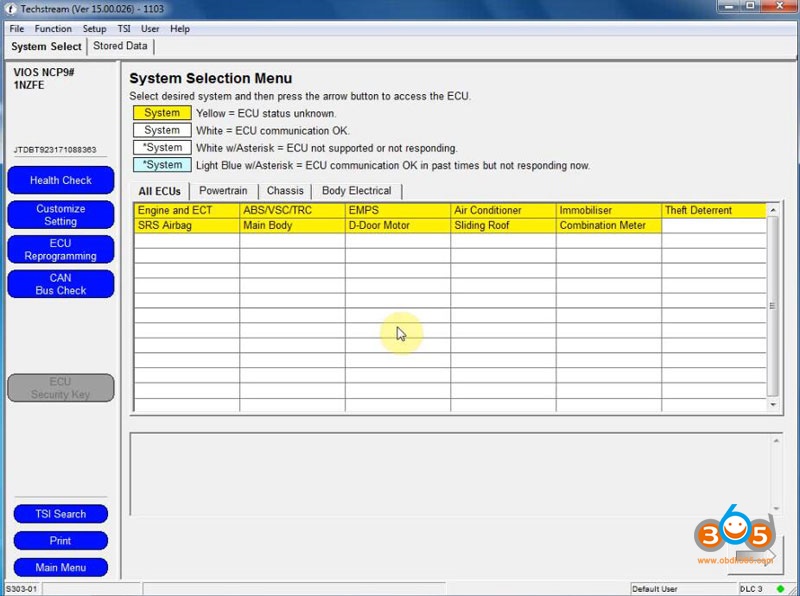
Now you can diagnose, do Health Check, Customize setting, ECU reprogramming, CAN Bus check etc with the tis techstream v15
install-techstream-v15-00-026-for-vxdiag-18

install-techstream-v15-00-026-for-vxdiag-19