1/29/2018

How to install Ford IDS V108 Software Step by Step

Latest Ford IDS V108.01 Full Software for Ford VCM II support online programming released on Jan. 2018.

Software Version: 108.01. No need activation
ford-ids-v108
Operating system: Windows XP/Windows 7 32/64 bit
Multi-language:
ford-ids-v108-language
Tested with Ford VCM2 clone and VXDIAG VCX NANO Ford: Never failed!!


Online programming: Supported! but you should have an account yourself.

Ford IDS v108.01 function: Confirmed!
1.Able to download the very latest calibration files/software from Ford server if the network connection available at the time of connecting to vehicles
2.Read and decode fault codes
3.Delete fault codes
4.Display System current parameters in digital form
5.Combined displaying of data
6.Logs Keeping: write and keep of digital parameters in memory
7.Special functions: changing of permissible seeting of blocks, programming etc.

FAQ:
Q: Whether it can work with Ford VCM 1 Clone?
A: Yes, it can work with Ford VCM 1 clone

Q: Is this vmware or native
A: This is native, install on new and clean windows xp/7

How to install Ford IDS V108 step by step?
Preparation:
1. Please backup the important files on the desktop and disk C because the next operation will cover the content in the disk C.
2.Disable both local area and wireless network connection
3. If your computer hard drive only has one partition, please prepare a 16 GB U flash drive, if has 2 partitions, please unzip the software of CD into another partition except disk C

Step 1: Recover System
Open Software D (Disk D)
install-ford-ids-v108-1

Create new folder Ford 108
install-ford-ids-v108-2

Copy all zip file on Ford 108-2 software CD to Ford 108 folder
Eject Ford 108-2 DVD-ROM to DVD/CD-RW Drive
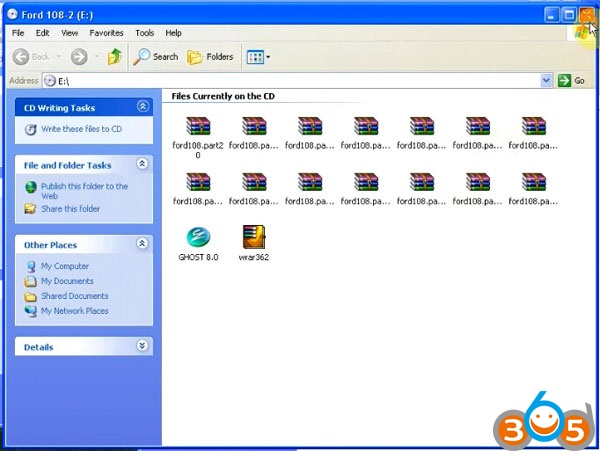
install-ford-ids-v108-3

Copy all contents to Ford 108 folder again
Extract ford108.part01 zip files to Ford 108 folder
install-ford-ids-v108-4

Then delete all other zip files, ford108.part01-ford108.part33
(only 3 files left)
Open Ghost 8.0
install-ford-ids-v108-5

Recover system, choose destination D:/Ford 108/ford108.GHD
Restart computer and recover system
install-ford-ids-v108-6
Step 2: Install Ford IDS 108 Setup
install-ford-ids-v108-7
Run Ford Module Programming Limit as Administrator
Ford Extension Success, press OK
Module programming has been extended to 2018/05.26
install-ford-ids-v108-8

Click on Start menu->All Program->Bosch->VCM Manager (Ford-VCM-II)
If system prompt PC software initialization error, press OK to ignore
Open Disk C/Progam Files/Ford Motor Company->IDS->Runtime->install3rdparty->
ETAS, Run setup as Administrator
install-ford-ids-v108-9
install-ford-ids-v108-10
Install Bosch VCI software Ford VCM II
install-ford-ids-v108-11

click Next
Select Remove Bosch VIC software from your computer, click Next
install-ford-ids-v108-12

Press Remove
Click Finish
Again run setup as Administrator
click Next
install-ford-ids-v108-13

Ready to install the program
Click Finish
Install setup completed.

Step 3: Make Connection 
Click Start menu->VCI Manger (Ford-VCM-II)
install-ford-ids-v108-14

Connect VCMII with computer follow the diagram below
install-ford-ids-v108-15

Open Computer->Manager->Device Manger->Network adapters->ETAS VCI USB RNDIS Device
to check connection is built
install-ford-ids-v108-16
Open Network and Sharing center->Change adapter settings
Make sure you have disable both local area and wireless network connection
install-ford-ids-v108-17
Step 4: Run software
Open Ford IDS v108 software on desktop
install-ford-ids-v108-18
Network test, gathering vehicle data
install-ford-ids-v108-19

check language options, programming modules and options
install-ford-ids-v108-20
install-ford-ids-v108-21
Done.
http://www.obdii365.com/service/how-to-install-ford-ids-v108-software-96057.html

1/01/2018

How to install ODIS 4.23 with VAS 6154 Interface

Guide: How to install ODIS software with VAS 6154 diagnostic interface. VAS6154 China clone is the improved version of VXDIAG VCX NANO (all made by Allscanner company). VAS6154 supports connection via USB and WiFi. Connection via WiFi is more stable than that via Bluetooth

VAS 6154 interface comes with best firmware and quality blue board.
vas-6154-wifi
VAS 6154 only works with ODIS 3.0.3 or newer. Cannot support VAS-PC V19
ps. VAS 5054A vs. VAS6154
VAS 5054A can work with odis new or old
VAS5054a support USB and Bluetooth connection
Stable only with Oki Chip and Bluetooth Chip AMB2300
Vas6154 supports USB and WiFi connection


How to Install Odis with China Clone Vas 6154?

1. Format c:\
2. Install Win 7 (64)
3. Install ALL DRIVER !!!
4. Defender + Firewall and all Virus Prog. OFF
5. Use 3.0.3 or above Odis 4.23 latest version (software CD or download from other resources
6. Install as admin
install-odis-with-vas-6154-1
7.
8.Install Offboard Diagnostic Information System Service Setup
install-odis-with-vas-6154-2
install-odis-with-vas-6154-3
install-odis-with-vas-6154-4
install-odis-with-vas-6154-5
install-odis-with-vas-6154-6
COPY and PASTE license.dat
install-odis-with-vas-6154-7
install-odis-with-vas-6154-8
install-odis-with-vas-6154-9
install-odis-with-vas-6154-10
install-odis-with-vas-6154-11
install-odis-with-vas-6154-12
install-odis-with-vas-6154-13
COPY + PASTE Launcher Crack overwrite
install-odis-with-vas-6154-14
install-odis-with-vas-6154-16
install-odis-with-vas-6154-17
Send Hardware Id to engineer to activate the software with registration key
install-odis-with-vas-6154-18
install-odis-with-vas-6154-19
install-odis-with-vas-6154-20
install-odis-with-vas-6154-21
install-odis-with-vas-6154-22
install-odis-with-vas-6154-23
Download VX Maneger Latest Version
http://www.allscanner.com/?page_id=10003&lang=en
install-odis-with-vas-6154-24
install-odis-with-vas-6154-25
install-odis-with-vas-6154-26
install-odis-with-vas-6154-27
install-odis-with-vas-6154-28
Connect via USB
install-odis-with-vas-6154-29
install-odis-with-vas-6154-30
install-odis-with-vas-6154-31
Connect to Internet !!! Click
install-odis-with-vas-6154-32
install-odis-with-vas-6154-33
install-odis-with-vas-6154-34
install-odis-with-vas-6154-35
install-odis-with-vas-6154-36
Connect VAS 6154 ODIS with WIFI !!!
install-odis-with-vas-6154-37
install-odis-with-vas-6154-38
install-odis-with-vas-6154-39
install-odis-with-vas-6154-40
Credit to pilic from MH forum.

12/03/2017

Toyota Techstream 12.30.017 Software Free on Mega

(12/2017) Free download TOYOTA TIS Techstream V12.30.017 software and install on Windows 7 or Windows 10, to get it work with Techstream cables like Mini vci j2534 cable, Vxdiag vcx nano for toyota diagnostic tool, etc. 
toyota- techstream 12.30.017
 TOYOTA TIS Techstream V12.30.017 download free:
Ver: 12.30.017
Password: Not required!
Security: Unknown

TOYOTA Techstream V12.30.017 activation:

Credits to Autokent

Toyota Techstream 12.20.024 crack download with security:
It’s crack version. No need activation
Tested OK with Mini VCI cables (SV46, SV46-B), Mangoose VCI (SV46-C) and Vxdiag Vcx Nano for Toyota

Techstream install windows 7:
Step 1: install Toyota Techstream 12.20.024 software

open Techstream 12.20.024 disk F:
copy all files to another new folder on Desktop
open Techstream 12.20.024 setup application
choose a setup language for installation
preparing setup
Next to install Techstream software
accept the agreement
enter the user name and company name, then Next
begin Techstream 12.20.024 installation
installing Techstream 12.20.024…
successfully installed Techstream
Finish Techstream v12 installation


Step 2: replace the MainMenu.exe

copy the MainMenu.exe
go to Techstream Properties on Desktop
open file location
paste and replace MainMenu.exe in Program files/toyota diagnostics/techstream/bin


Step 3: install MVCI driver

run MVCI driver for TOYOTA TIS SETUP
Next to install MVCI driver
Install
installing MVCI driver
Finish MVCI driver installation


Step 4: register Techstream

run Techstream application on Desktop
Yes to continue
close the internet explorer
this is Toyota Techstream ver.12.20.024 interface
register Techstream software 12.20.024
it’s Techstream crack version
use key (attached to the Instructions.txt) to register
OK
exit Techstream


Step 5: check MVCI fw version

run MVCI firmware update tool on Desktop
exit MVCI firmware update tool


Step 6: run Techtsream 12.20.024
run Techstream application on Desktop for use


Techstream install windows 10:

This is a how-to’s of TechStream10.10.018 on my Windows 10 64-bit tablet. Here are the steps:

  1. Installed TechStream software

  1. Extracted XHorse install package into temporary directory, e.g. in command shell msiexec /a “MVCI Driver for TOYOTA.msi” /qb TARGETDIR=<destination path>
Where destination path = path to temporary directory

  1. Copied contents of extract to C:\Program Files (x86)\XHorse Electronics\MCVI Driver for Toyota TIS\

  1. Downloaded and installed the 64-bit registry hack (contents below – save text to file and name file with .reg extension, run to install via RegEdit)

Windows Registry Editor Version 5.00:

[HKEY_LOCAL_MACHINE\SOFTWARE\Wow6432Node\PassThruSu pport.04.04]

[HKEY_LOCAL_MACHINE\SOFTWARE\Wow6432Node\PassThruSu pport.04.04\XHorse – MVCI]
“Name”=”XHorse – MVCI”
“Vendor”=”XHorse ELECTRONICS Co.,Ltd.”
“ConfigApplication”=”C:\\Program Files (x86)\\XHorse Electronics\\MVCI Driver for TOYOTA TIS\\FirmwareUpdateTool.exe”
“FunctionLibrary”=”C:\\Program Files (x86)\\XHorse Electronics\\MVCI Driver for TOYOTA TIS\\MVCI32.dll”
“APIVersion”=”04.04”
“ProductVersion”=”1.1.0”
“ProtocolsSupported”=”J1850VPW:1, J1850PWM:1, CAN:1, ISO9141:1, ISO14230:1, ISO15765:1”
“J1850VPW”=dword:00000001
“J1850PWM”=dword:00000001
“ISO9141″=dword:00000001
“ISO14230″=dword:00000001
“CAN”=dword:00000001
“ISO15765″=dword:00000001
“SCI_A_ENGINE”=dword:00000000
“SCI_A_TRANS”=dword:00000000
“SCI_B_ENGINE”=dword:00000000
“SCI_B_TRANS”=dword:00000000

  1. Rebooted tablet
  2. Plugged in J2534 Mini-VCI cable. Windows 10 automatically detects the cable. You will notice in device manager it adds 3 devices:

Ports (COM & LPT) -> USB Serial Port (COM<n>) where <n> = a system assigned number
Universal Serial Bus Controllers -> USB Serial Converter
Vehicle Interface Module

Interestingly enough, Windows 10 installs the most up to date drivers for these devices. I tried to manually install the MVCI drivers from the MSI, no avail – on reboot, Windows 10 overwrites these.
Anyways, I don’t think manually updating the drivers is necessary with the registry hack.
  1. Loaded TechStream
  2. In the menu, go to Setup -> VIM Select -> select Interface Setup = XHorse – MVCI
  3. Turn vehicle to ON, position II
  4. Select ‘Connect to Vehicle’ and you should be able to connect!